Billing
Manage payment methods, invoices, and billing preferences
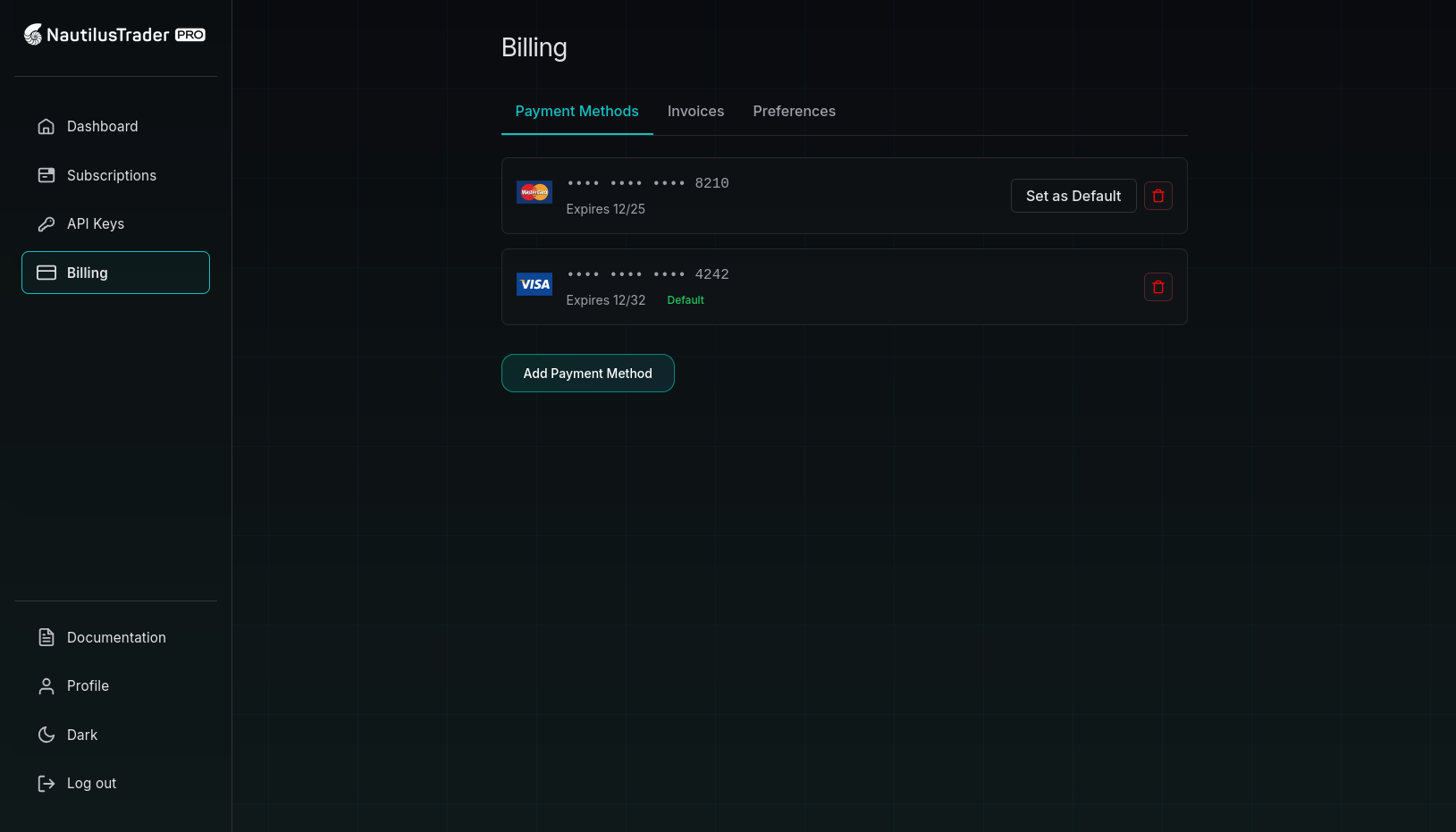
Overview
Manage payment methods, view invoices, and configure billing preferences.
Navigate through three tabs: Payment Methods, Invoices, and Preferences.
Payment methods
Adding a payment method
- Click Add Payment Method
- Enter card details in the Stripe form
- Optionally check "Set as default payment method"
- Click Add Card
Stripe securely stores your card and displays only the last 4 digits.
Managing payment methods
Set as Default
- Click Set as Default button on any non-default card
- The card becomes your primary payment method
Delete a Payment Method
- Click the trash icon on the payment method card
- Confirm deletion in the dialog
Card Display:
- Shows card brand (Visa, Mastercard, Amex, etc.) with icon
- Displays last 4 digits (•••• •••• •••• 1234)
- Shows expiration date
- Default card is labeled
Invoices
View invoices from the past 12 months.
Invoice display
Each invoice shows:
- Invoice Number - Unique identifier
- Description - What the invoice covers
- Status - Payment status badge
- Amount - Total amount due
- Created - Invoice date
Invoice actions
View Invoice
- Click View button with eye icon
- Opens Stripe's hosted invoice page in new tab
Download PDF
- Click PDF button with download icon
- Downloads invoice as PDF file
Empty State: If no invoices exist, you'll see "No invoices found" with a note that invoices appear after your first purchase.
Preferences
Configure billing information that appears on your invoices.
Important: Changes apply to future invoices only. Contact support for past invoice reissues.
Available fields
Company Information:
- Company Name - Appears on invoices instead of organization name
- PO Number - Purchase order reference
- Billing Email - Where invoices and notifications are sent
- Business Tax ID - For invoicing purposes
Business Address:
- Address Line 1 & 2 - Physical address
- City - City name
- State/Province - State or province
- Postal Code - 3-20 characters, alphanumeric with spaces/hyphens
- Country - 2-letter ISO country code
Saving preferences
- Fill in desired fields (all are optional)
- Click Save Preferences
- Confirmation appears: "Billing preferences saved successfully"
Validation:
- Email must be valid format
- Postal code: 3-20 characters
- Country: exactly 2 uppercase letters
- Tax ID: up to 50 characters
Payment security
NautilusTrader Pro uses Stripe for secure payment processing:
- No Card Storage - We never store full card details on our servers
- Tokenization - Cards are tokenized and stored securely by Stripe
- PCI Compliance - All processing meets PCI DSS standards
- Secure Forms - Card entry uses Stripe Elements for maximum security